
Make an animated title card
You'll make a five-second title card. A bold headline stomps in word by word, a subtitle rises in after it, and both blur away at the end.

You'll learn how to
- start a blank project and set its background and length
- add text and style it
- animate text word by word
- give a layer an entrance and an exit
- export an MP4
Before you start: Nothing. Everything is in Paraplex.
Part 1: Set up the frame
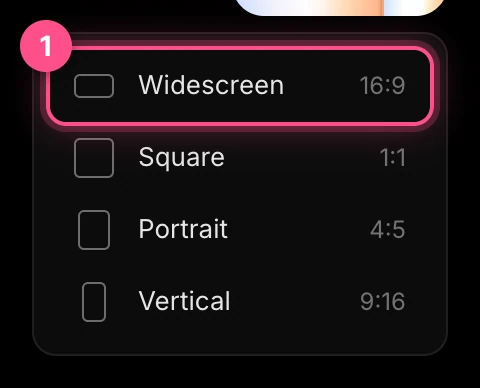
On the home page, click the arrow beside New file and choose Widescreen (1).
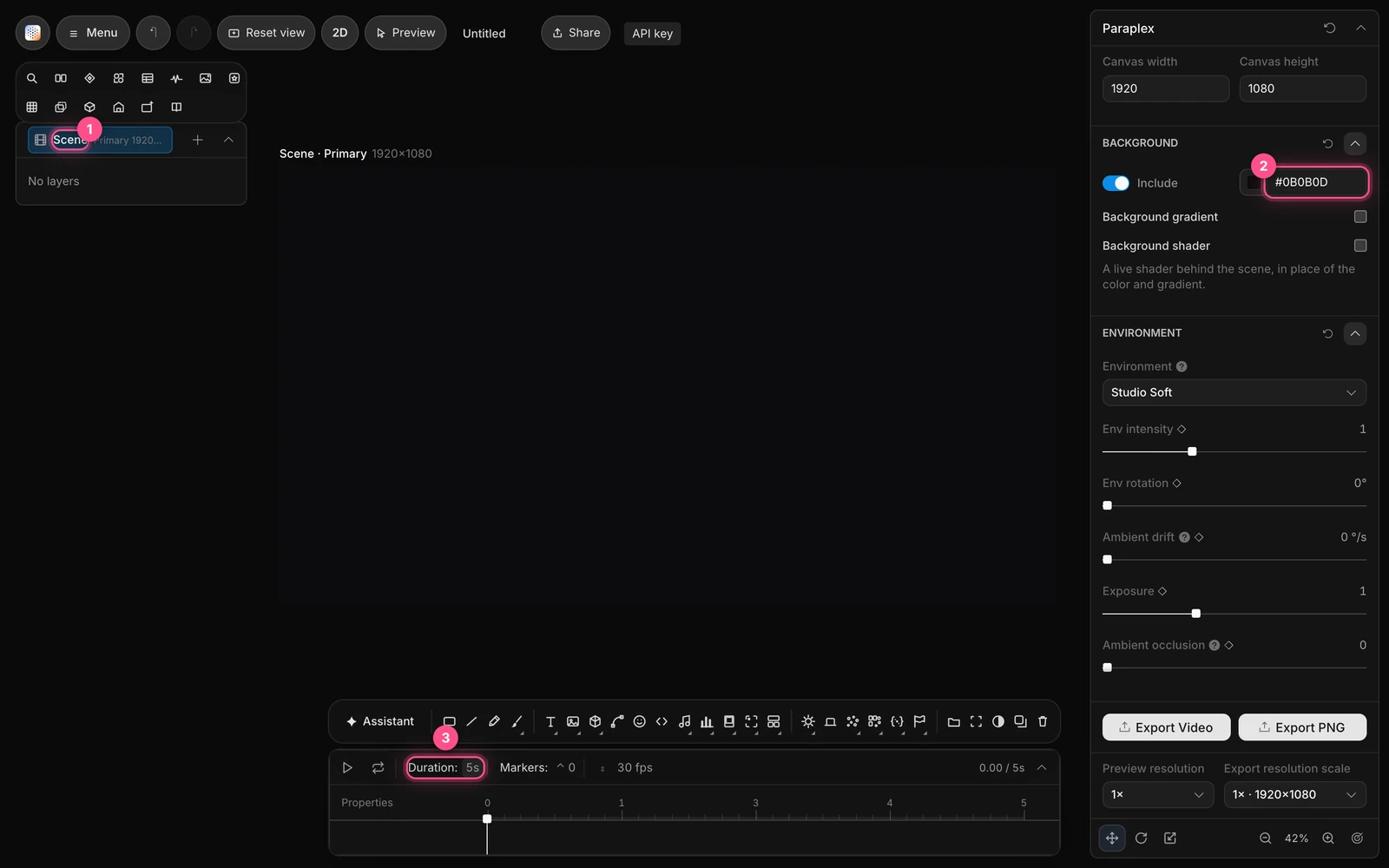
- Click Scene at the top of the Layers panel (1 in the picture below). The properties panel shows the scene's settings.
- In Background, click the color's hex code, type
#0B0B0Dand press Enter (2). The frame turns near black. - In the timeline's header, click the number after Duration, type
5and press Enter (3).
Part 2: Write the title
- Press T, then click in the middle of the frame. Type
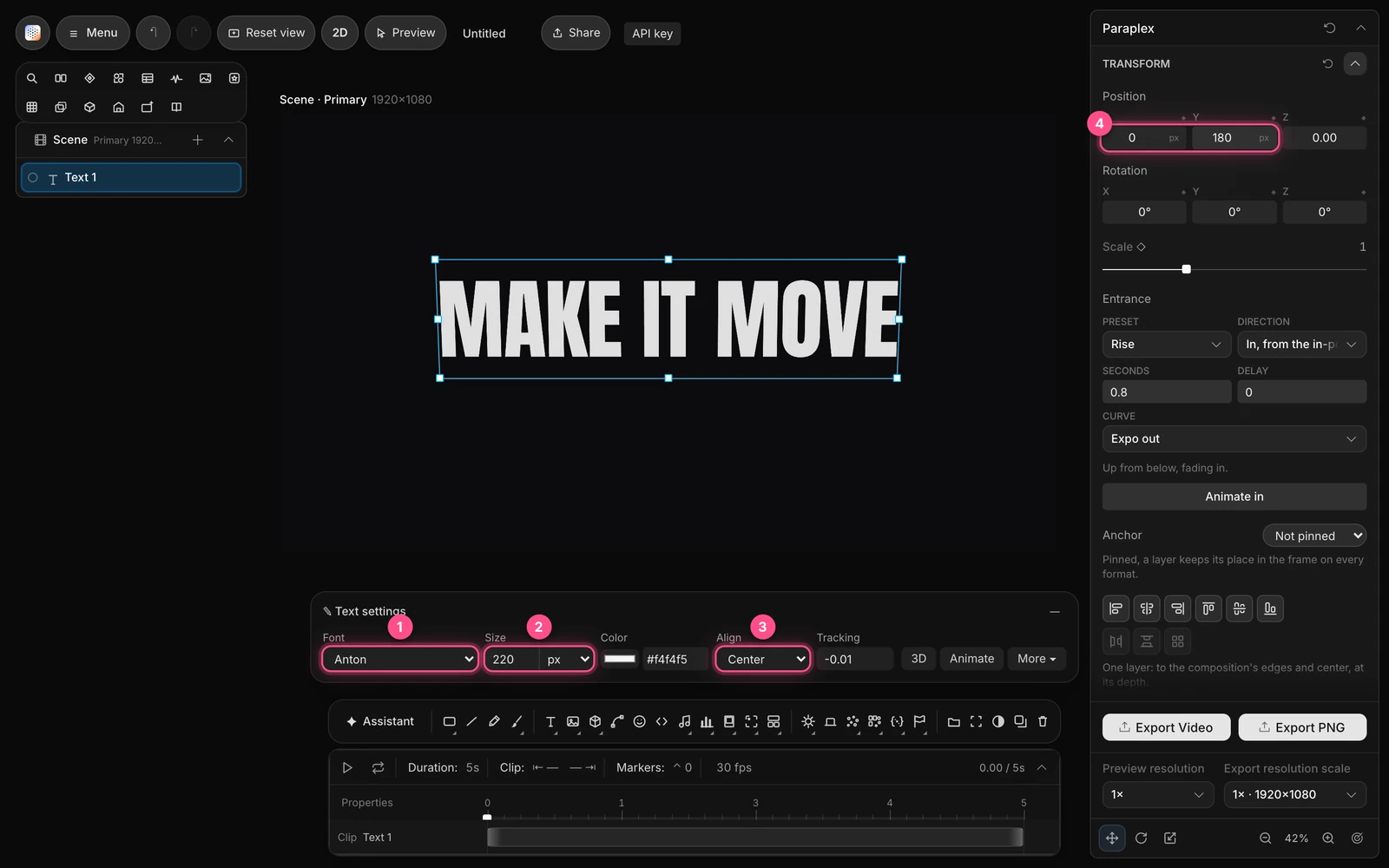
MAKE IT MOVEand press Esc. - In the Text settings panel that appears over the canvas, set Font to Anton (1), Size to
220(2), and Align to Center (3). - In the properties panel's Transform section, click the number under Position X and type
0, then click the one under Y and type180(4). That centers the title, a little above the middle, to leave room for a subtitle.
Part 3: Make it stomp
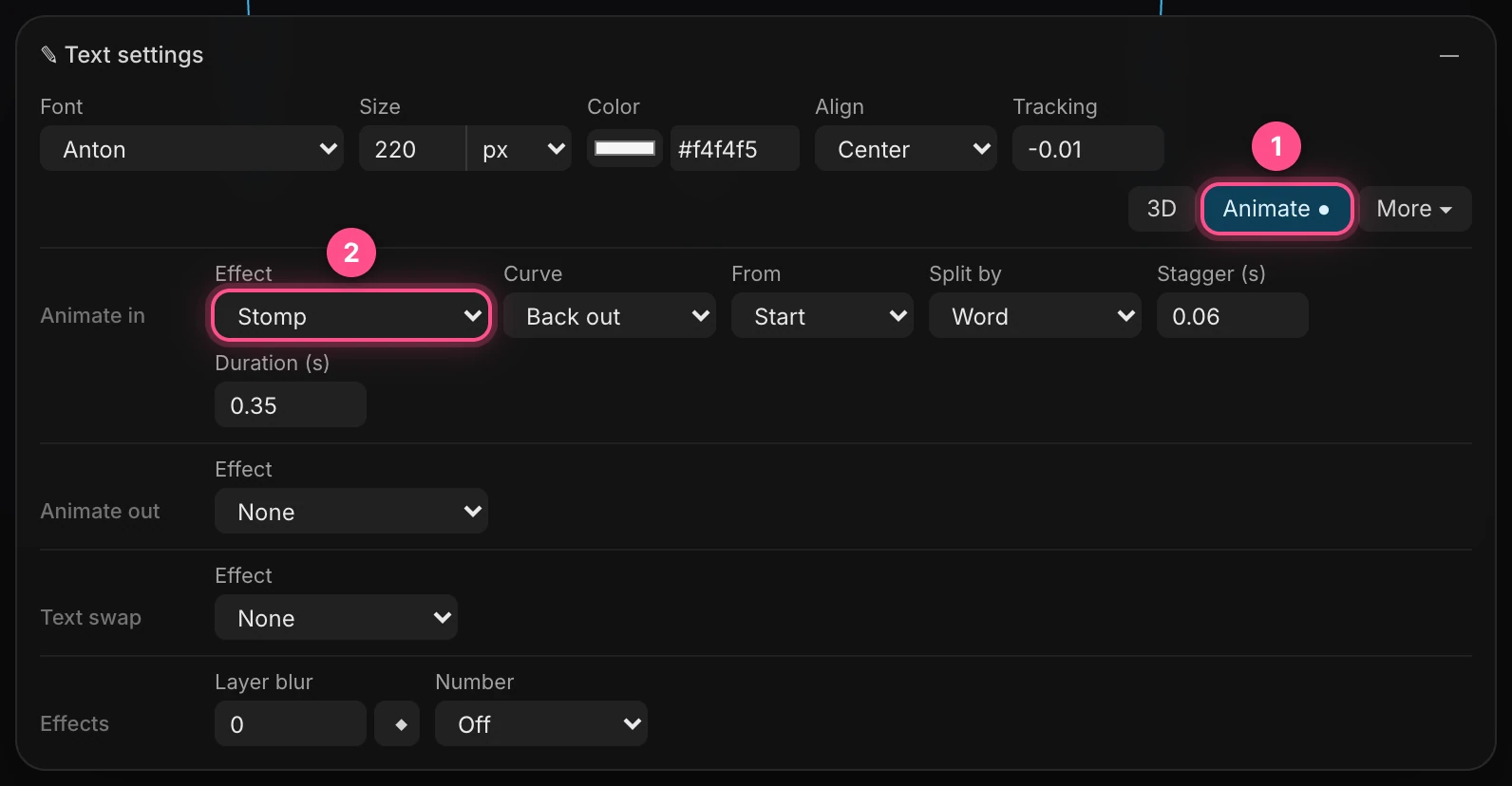
- In Text settings, click Animate (1).
- In the Animate in row, open Effect and choose Stomp (2). It's in the Kinetic group.
- Press Space to play.
Each word slams down from larger, one after another:

Tip
There are 38 effects to try here, from a soft Blur in to a Typewriter. See Text animation.
Part 4: Add a subtitle
- If the piece is still playing, press Space to stop it. Press Esc so nothing is selected: with the title selected, T would edit its words instead. Then press T and click below the title. Type
Your first kinetic titleand press Esc. - In Text settings, set Font to Inter, Size to
56, and Align to Center. Click the hex code beside Color, type#FFB46Band press Enter: the warm amber of a tungsten light. - Set Position X to
0and Position Y to-110. - Now the animation. In the Transform section, find Entrance. Set Preset to Rise (1) and Delay to
0.5(2), then click Animate in (3).
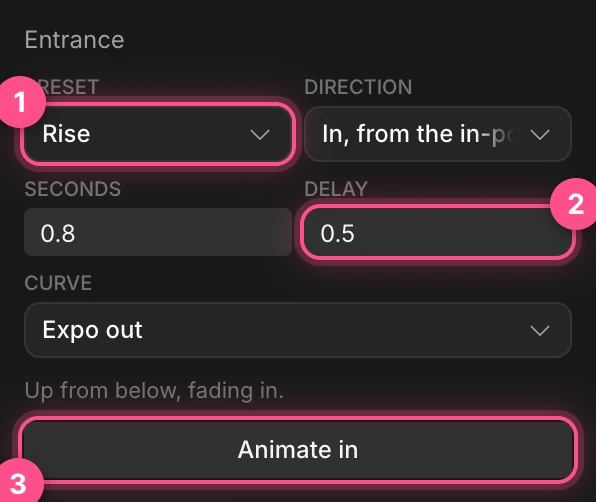
The Delay holds the subtitle back half a second, so it arrives just after the title. (Text effects always start at the very beginning, which is why the subtitle uses Entrance instead.)
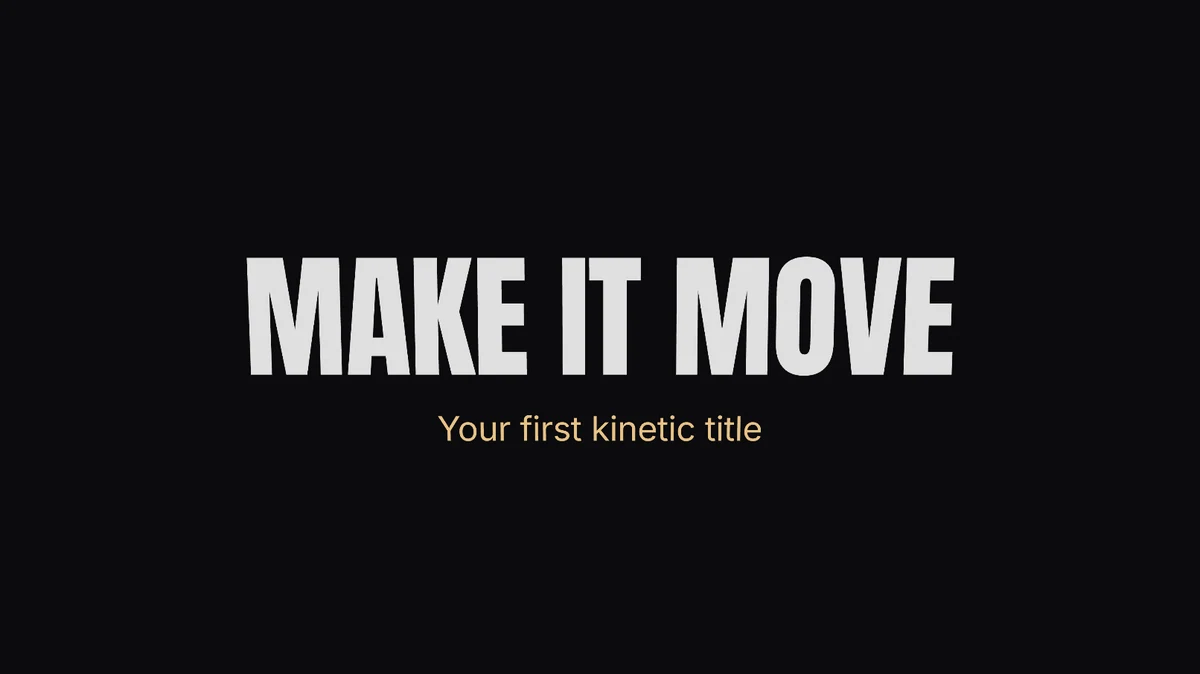
Pause anywhere after the first second, and your frame looks like this:
Part 5: Send them off
Select the title: click Text 1 in the Layers panel. In Text settings' Animate out row, set Effect to Blur in (1). Leave At at
4(2), so the words blur away from 4 seconds in.
Select the subtitle: click Text 2. In Entrance, set Direction to Out, to the out-point (1) and Delay to
0.3(2), then click Animate out (3). The subtitle sinks away just before the end.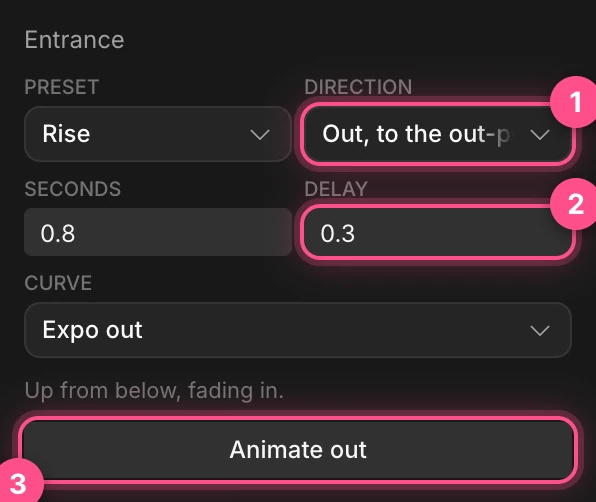
- Press Space to watch the whole piece.
Export it
- Click an empty part of the canvas, so nothing is selected.
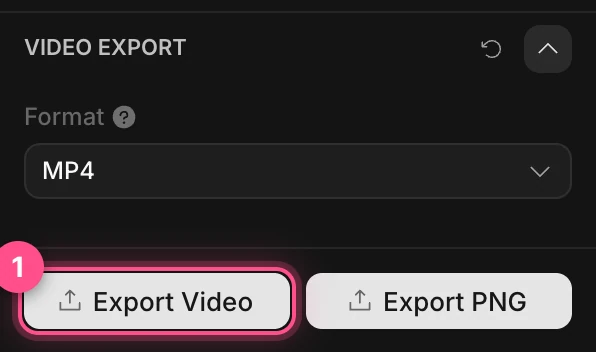
- At the bottom of the properties panel, check that Video Export › Format says MP4.
- Click Export Video (1). Paraplex draws every frame, then your browser downloads the MP4.
To come back to it later, give your project a name in the top bar. See Saving your work.
Try this next
- Try another effect. Swap Stomp for Mask rise, Decode or Tracking in. See Text animation.
- Swap the subtitle between phrases, such as "Your first kinetic title, Your next big idea". See Text animation.
- Push the camera in slowly while the title holds. See Camera moves and shake.
- Make a vertical version for Reels and TikTok. See Canvas size and setup.
- Next tutorial: Make a vertical promo for social.