
Materials and appearances
A material decides how a surface meets the light: chalky or glossy, metal or glass. An appearance is a finished look built on one, such as oak, terracotta, brushed steel or velvet, with its color and texture included. Click a look to start, then tune the material's dials.
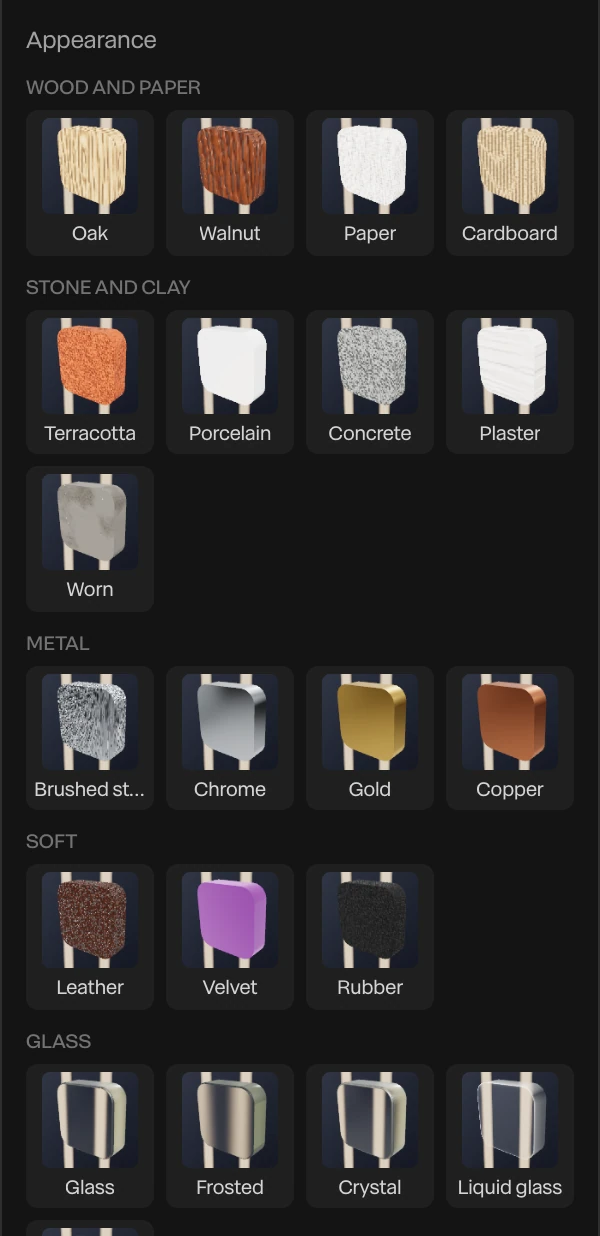
Where to find it: the Appearance and Panel Material sections, with a layer selected.
Choose an appearance
- Select one or more shapes, text layers, 3D models or blobs.
- In the Appearance section, click a look.
The look sets the material, the color and the texture together, as one step for undo. Hover a thumbnail to read what it is.
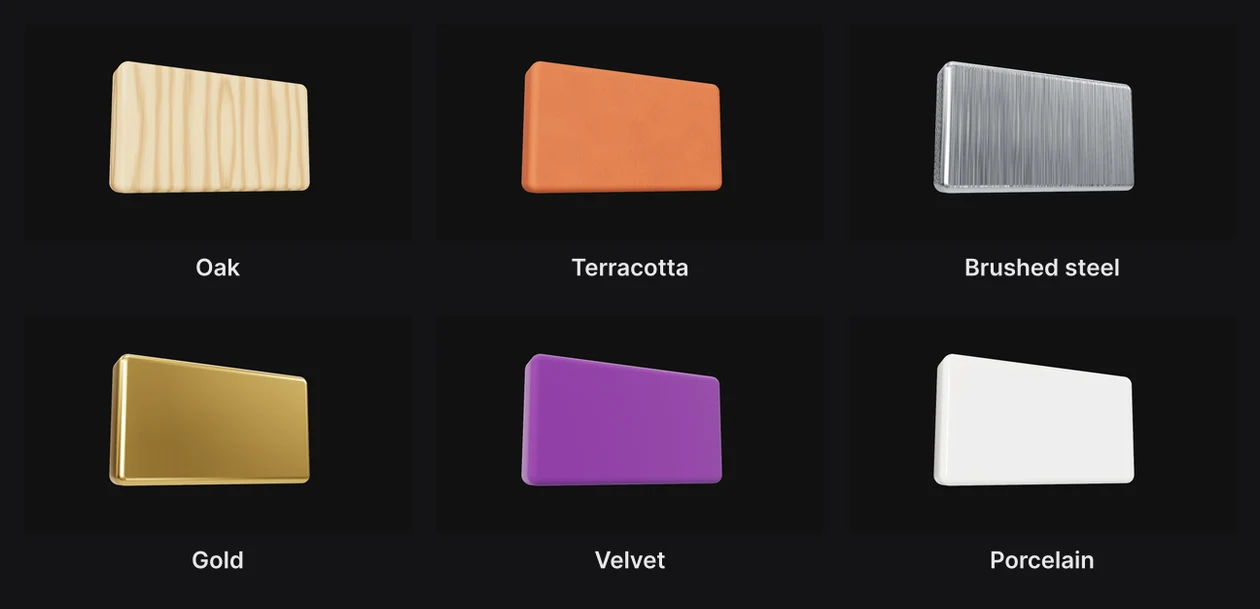
| Group | Appearances |
|---|---|
| Wood and paper | Oak, Walnut, Paper, Cardboard |
| Stone and clay | Terracotta, Porcelain, Concrete, Plaster, Worn |
| Metal | Brushed steel, Chrome, Gold, Copper |
| Soft | Leather, Velvet, Rubber |
| Glass | Glass, Frosted, Crystal, Liquid glass, Dark glass |
A look is whole. Choosing Chrome after Oak takes the wood texture off, because Chrome has none.
Everything an appearance sets stays editable: the color under Panel Fill, the dials under Panel Material, and the texture under Texture. See Textures.
Note
A 3D model or a blob takes the look's material and texture, and keeps its own colors.
Set a material by hand
Shapes and text have a Panel Material section.
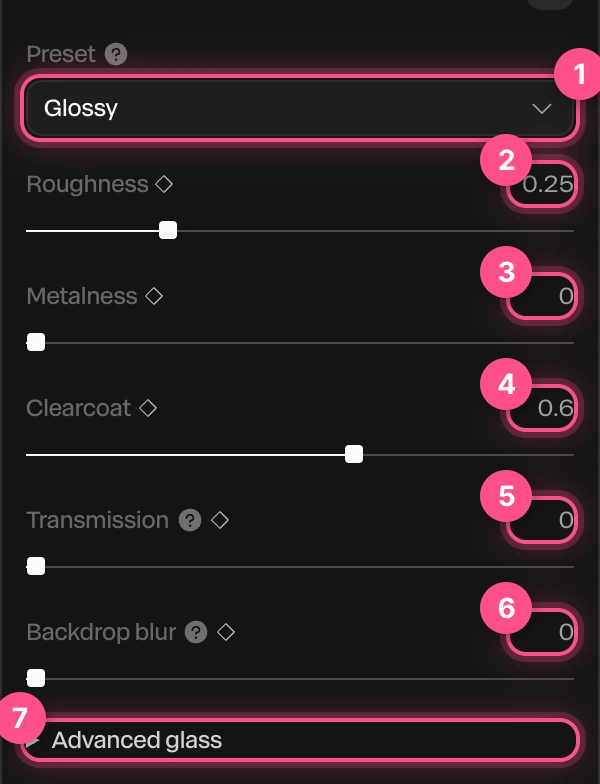
- Preset: a starting point. Choosing one sets the dials below it, which you can then change.
- Roughness:
0is a mirror-smooth surface with sharp reflections,1is chalky and spreads the light. - Metalness:
1turns the surface into metal, which takes its color from what it reflects. - Clearcoat: a thin glossy layer on top, like varnish or a car's paint.
- Transmission: lets light through, turning the surface to glass.
- Backdrop blur: frosts what you see through a surface with Transmission above 0.
- Advanced glass: refraction, color splitting, iridescence and more, for glass. See Glass and Liquid glass.
Roughness through Backdrop blur each have a ◆, so a material can change over time. See Animation basics.
The presets

| Preset | What it is |
|---|---|
| Matte | Chalky, no shine. |
| Glossy | Smooth with a clear coat. A new shape starts as Glossy. |
| Glass | Clear glass. It shows what's behind it, so on an empty background it looks dark. |
| Frosted glass | Glass that blurs what's behind it. |
| Metal | Polished metal that reflects the scene's environment. |
| Fabric | Soft and dull, like cloth. |
| None (unlit) | Ignores the lights: the color shows exactly as you set it, flat. |
| Image / Logo | Flat and unlit, for a picture or logo that should look exactly like the file. The dock's Image uses it. |
Important
Metal reflects the environment around the scene. In a black environment, a metal surface renders black. Pick a brighter environment in the Scene's lighting. See Lighting and environments.
Save a material
To reuse a material you've tuned, choose Menu › Materials › Save current material…. It's named after the layer and listed in the same menu, marked saved. Choose it there to put it on other layers.
Layers given a saved material follow it. To change the saved material, adjust one of them and choose Menu › Materials › Update followed material…. The Materials menu also applies the built-in presets to the selected layers.