
Render with AI

Render with AI takes a stretch of your animation and remakes it in the look you describe: photoreal glass and studio light, clay, watercolor, film. The layout and the motion stay yours. Paraplex renders the stretch first, as a guide, and a video model restyles it.
Where to find it: Render with AI in the quick-actions strip, Menu › Render with AI…, or search (⌘ K).
Render a stretch
- Set the stretch: it starts at the start of the render range, the Scene row's bar on the timeline. See The timeline.
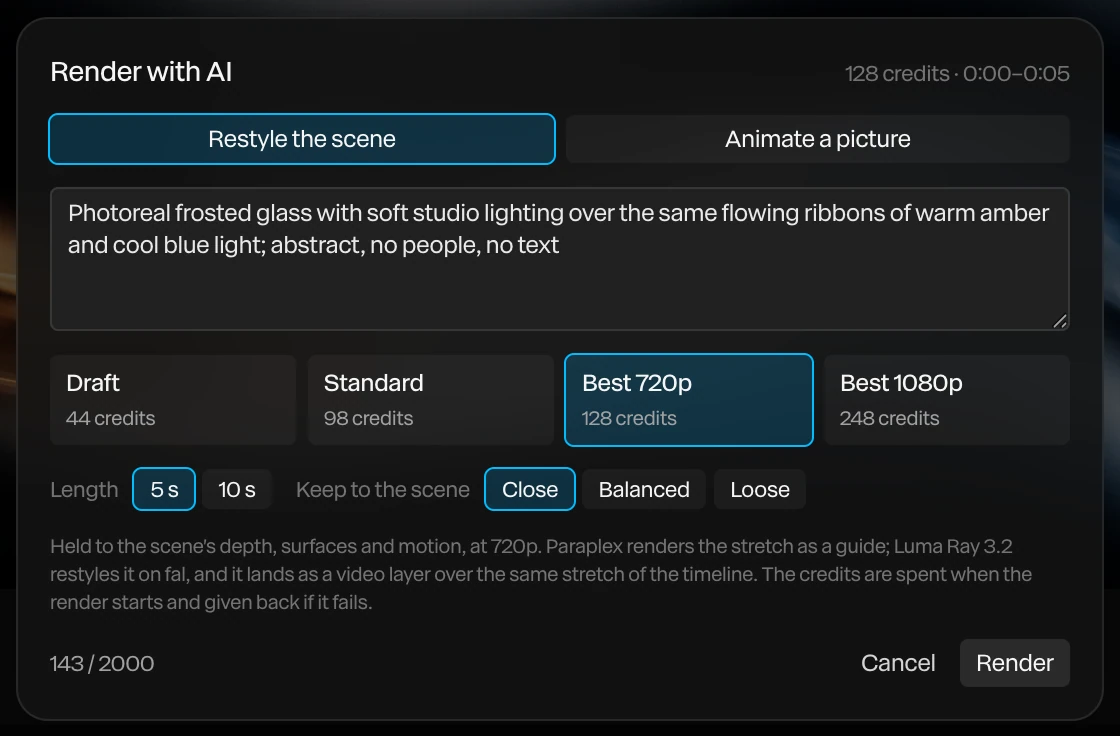
- Open Render with AI, and keep Restyle the scene chosen.
- Describe the look: the materials, the light, the style.
- Pick a quality and a Length of 5 s or 10 s.
- Click Render.
The render lands as a video layer over the same stretch of the timeline, filling the frame. Playback and export show it in place of the scene underneath.
Quality
| Quality | What it does |
|---|---|
| Draft | Quick and cheap. The scene's depth holds its layout, looser on detail. |
| Standard | Follows your description closely, keeping the scene's motion |
| Best 720p | Held tightly to the scene's depth, surfaces and motion, at 720p |
| Best 1080p | The same, at 1080p |
For Draft and the Best qualities, Keep to the scene sets how closely it follows your scene: Close, Balanced or Loose. Loose gives the model more room to invent.
The dialog shows the cost before you start. It depends on the quality and the length. See AI credits and keys.
Things to know
- A render takes from about a minute (Draft) to ten minutes or more (Standard and Best). You can close the dialog with Stop waiting: the render carries on, and lands when it's done, even after a reload.
- The credits are spent when the render starts, and given back if it fails.
- Render again, and the new guide leaves earlier renders out, so you restyle your scene, not the last render. Hide a render layer to see the scene it came from.
- Describe surfaces and light rather than new objects. The model follows your layout, so asking for things that aren't in the scene gives muddled results.
Tip
A Draft is cheap but loose: it can invent things that aren't in your scene, even people or lettering. For a result that stays true to your scene, use a Best quality with Keep to the scene set to Close.