
Publish and embed

Publishing puts your piece online under a link of its own. Paste the snippet into your website and it plays there, live: not a video, but the scene itself, so its behaviors answer the visitor's pointer and it can follow the page's scroll.
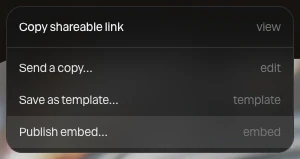
Where to find it: Share › Publish embed… in the top bar, or Menu › Publish embed…. You need to be signed in.
Publish a piece
- Click Share in the top bar, then Publish embed….
- Type a Name.
- Choose how it scrolls, under Scroll. See Scroll-driven animation.
- Click Publish.
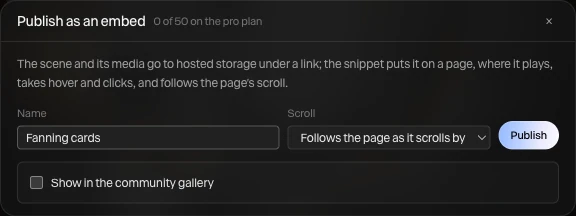
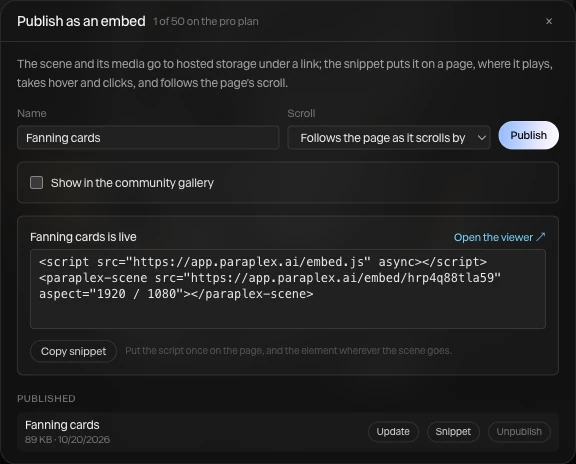
When it's done, the dialog says the piece is live and shows its snippet.
Put it on your website
- Click Copy snippet.
- Paste it into your page's HTML where the piece should go. Most website builders have an Embed or Custom code block for this.
The snippet is two lines:
<script src="https://app.paraplex.ai/embed.js" async></script>
<paraplex-scene src="https://app.paraplex.ai/embed/…" aspect="1920 / 1080"></paraplex-scene>
The first line loads the player. Put it on the page once, even with several pieces. The second line is the piece. It fills the width it's given and keeps its shape. Open the viewer shows the piece on its own page.
To change what the snippet does (the scroll, a theme, words and pictures filled in by the page), see Embed API.
How it plays on a page
- It plays and loops while it's on screen, and pauses when it's scrolled away. There are no play controls.
- Unless you chose Plays on its own, it follows the page's scroll once the visitor starts scrolling.
- Hover, click and drag work, and so does a state machine and the viewer camera.
- For a visitor who has asked their device for less motion, it holds its first frame.
Update or unpublish
Your published pieces are listed under Published in the same dialog.
| Button | What it does |
|---|---|
| Update | Replaces what the link shows with the scene that's open now. Pages that embed it show the new version, with no new snippet. |
| Snippet | Copies that piece's snippet |
| Unpublish | Takes it down. Pages that embed it show nothing. |
Share it in the community gallery
Check Show in the community gallery before you publish to list it for everyone to find. Add a Description and up to five Tags, and leave Let people clone this checked if others may open it as a template of their own. You need a handle on your profile first. A piece you don't list can be seen only by someone with its link.
A link instead of an embed
Share › Copy shareable link publishes the piece as a page of its own and copies the address. It's the same link every time, showing the piece as it is now. Send it to anyone; they can watch it and try its behaviors.
Plans and limits
| Free | Pro | |
|---|---|---|
| Published pieces | 3 | 50 |
| Interactive embeds (hover or click states, a state machine, or a code layer) | 1 | No limit |
| Views on other sites | 10,000 a month for each piece | No limit |
A piece can be up to 25 MB, with its pictures and video. On Free, a piece past its views for the month shows its first frame and a View on Paraplex ↗ button, which plays it on Paraplex. Views on Paraplex itself always play. See Plans and credits.
Note
Notes are never shown in embeds or share links.