
Copy, paste and duplicate
Copying in Paraplex works like you'd expect, plus a few extras. Layers paste into other projects and tabs, SVGs from design tools paste as editable vectors, and Paste style copies a look without the content.
Copy and paste layers
- Select one or more layers.
- Press ⌘ C (Ctrl C), or right-click and choose Copy.
- Press ⌘ V (Ctrl V), or right-click and choose Paste.
A copy carries everything: settings, keyframes, pictures and videos, sound, the layer's clip and transitions, and its label color. Pasted layers land just after the original in the Layers panel, in the same group, nudged a little down and to the right. They're selected, ready to move.
Copied layers paste into other projects and other browser tabs, even after a reload, because Paraplex keeps its own clipboard.
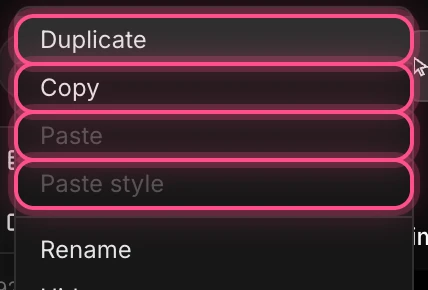
Duplicate
Press ⌘ D (Ctrl D), or right-click and choose Duplicate, to copy the selected layers in one step. Duplicating leaves whatever you last copied alone.
Duplicating a component makes another linked instance of it. See Components.
Paste from other apps
| You copy | Pasting gives you |
|---|---|
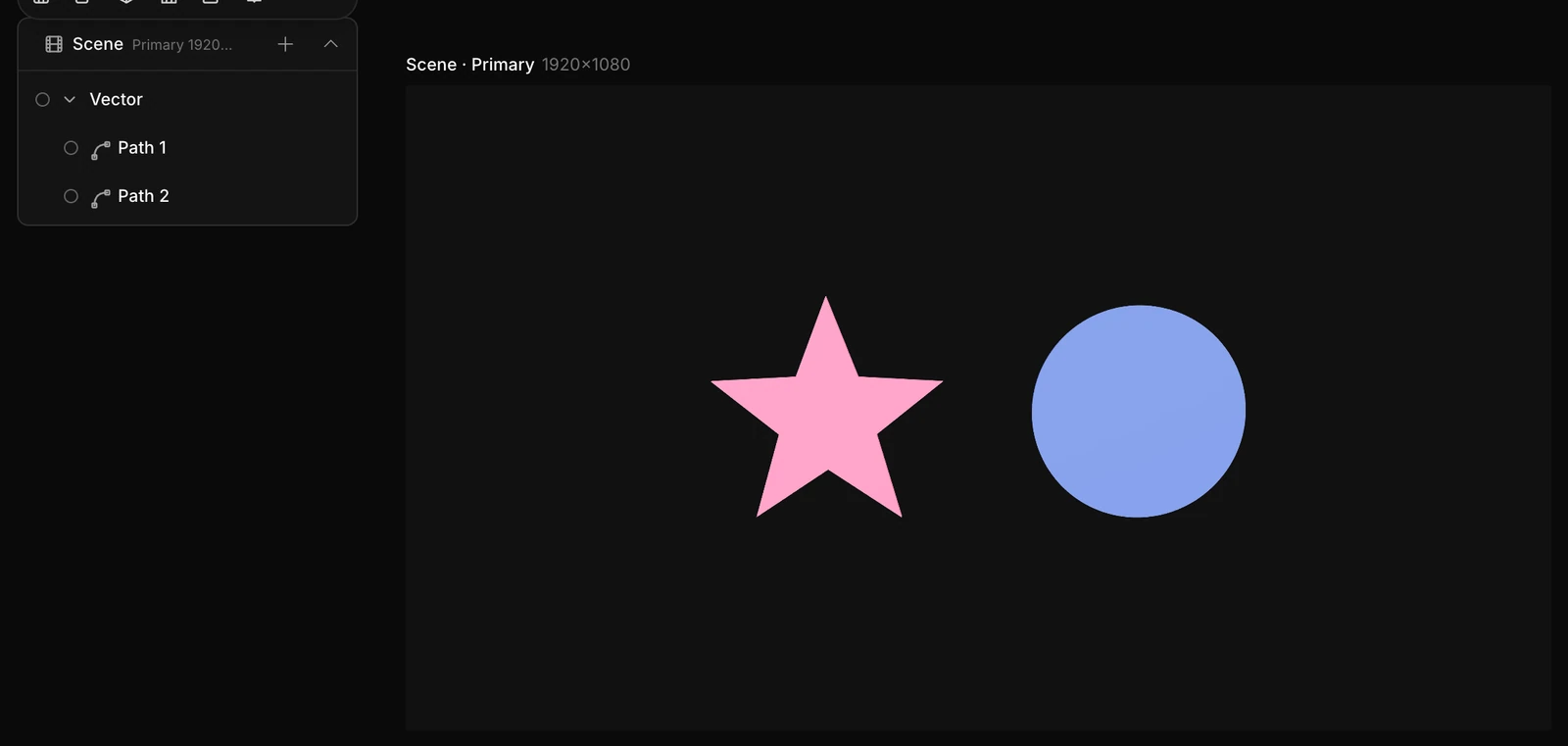
| An SVG from Figma, Illustrator or a code editor | Editable vector paths, one layer per shape, grouped as Vector when there are several. The drawing is scaled to fit and centered. |
HTML (a whole page or a snippet), a React component, or an npx shadcn add … command | A live code layer. See Code layers. |
| Frames copied with the Send to Paraplex Figma plugin | Your Figma frames as layers. See Figma plugin. |
Important
Plain text and pictures on your clipboard don't paste into Paraplex. If you try, ⌘ V pastes the last layers you copied in Paraplex instead. To add a picture, drop the file onto the canvas or use the dock's Image button. To add words, use the Text tool.
Paste style
Paste style copies a look from one shape or text to another, without changing the target's position, size or words.
- Select the layer whose look you like and press ⌘ C.
- Right-click the layer you want to restyle and choose Paste style.
It copies the fill or gradient, stroke, material, glow, light sweep, drop shadow, Liquid glass settings and opacity. Any of these the copied layer doesn't use are cleared on the target. Paste style works between shapes and text, and applies to the layer you right-clicked.