
Pen and paths
A path is a shape you draw point by point: a logo mark, an arrow, a speech bubble, a squiggle. Paths stay sharp at any size, can have depth like any shape, and can change form over time.
Draw with the pen
- Press P, or click Pen in the dock.
- Click to place a corner. Press and drag to pull out handles and make a curve.
- To finish a closed shape, click the first anchor again, or press Enter. A closed path fills in.
- To finish an open line instead, press Esc or click Done.

New anchors line up with the others as you place them, and a click near an existing anchor lands right on it. Each anchor is one step for undo.
The pen draws on the scene's main plane, facing the camera. Move or turn the path afterwards like any layer.
Note
New paths start in a dark slate gray, which is easy to lose on a dark background. Pick a color in Panel Fill once it's drawn.
The pen bar
While the pen is out, a bar above the dock shows what you can do.
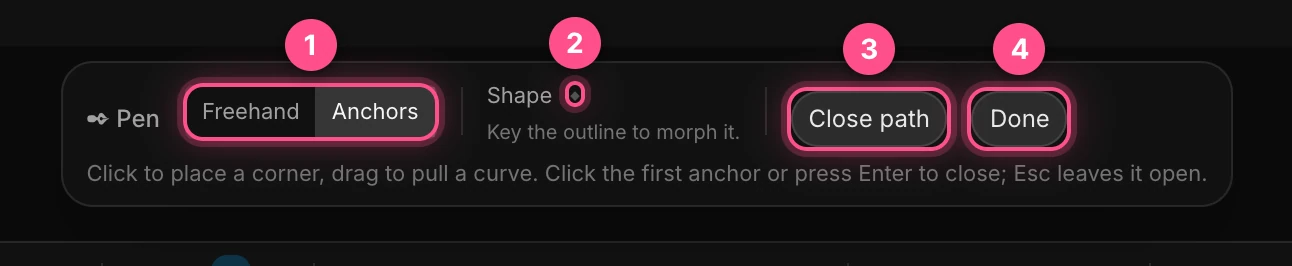
- Freehand draws as you drag, like a pencil, and adds a Smoothing slider: 0 keeps every wobble of your hand, 100 fits the fewest, smoothest curves. Anchors is the click-by-click drawing above.
- Shape ◆ keys the outline, so the path can change form over time. See Morph a path.
- Close path closes the shape. It needs three anchors or more.
- Done finishes and puts the pen away.
Edit anchors
When you close a shape, its anchors open for editing. To edit a path later, double-click it, or select it and press Enter.
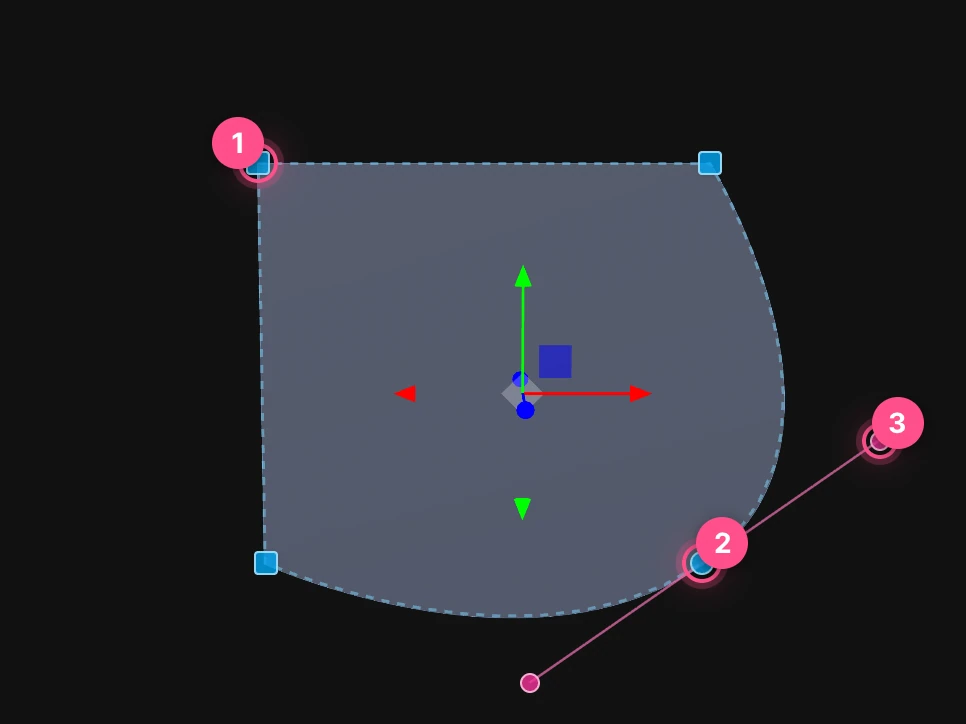
- Corner anchors are squares.
- Smooth anchors are circles. The curve flows through them.
- Handles bend the curve on either side of an anchor.
| To | Do this |
|---|---|
| Move an anchor | Drag it |
| Bend a curve | Drag a handle. On a smooth anchor the opposite handle follows; hold ⌥ Option to move one alone. |
| Switch corner and smooth | ⌥ Option-click the anchor |
| Add an anchor | Click the outline |
| Remove an anchor | Click it, then press ⌫ |
| Place an anchor exactly | Click it, then type Anchor X and Anchor Y in the pen bar |
Press Esc or click Done when you're finished.
Closed shapes and open lines
- A closed path is a shape like any other. It has a fill, a depth (Thickness in Panel Surface), a bevel and a material. See Shapes and frames.
- An open path draws as a thin line in its Panel Fill color. For a line with a real width, rounded ends, dashes or an arrowhead, turn on a Stroke. See Strokes.
For a straight line, use Line in the dock: click for a ready-made line, or drag from where it starts to where it ends. It comes with a white stroke.
To turn a line into a solid shape the same width, right-click it and choose Outline stroke. Then it can have depth and a material.
SVGs and icons
To bring in an SVG, copy its code and press ⌘ Cmd+V on the canvas, or click Vector in the dock and choose the file. Each drawn element becomes a path layer of its own, with its colors and strokes. Several elements arrive together in a group named "Vector".
Note
Dragging an .svg file onto the canvas adds it as a picture, not as paths. Use Vector or paste the code to get editable paths.
For an icon, click Icon in the dock. It opens the Lucide set, more than a thousand simple line icons.
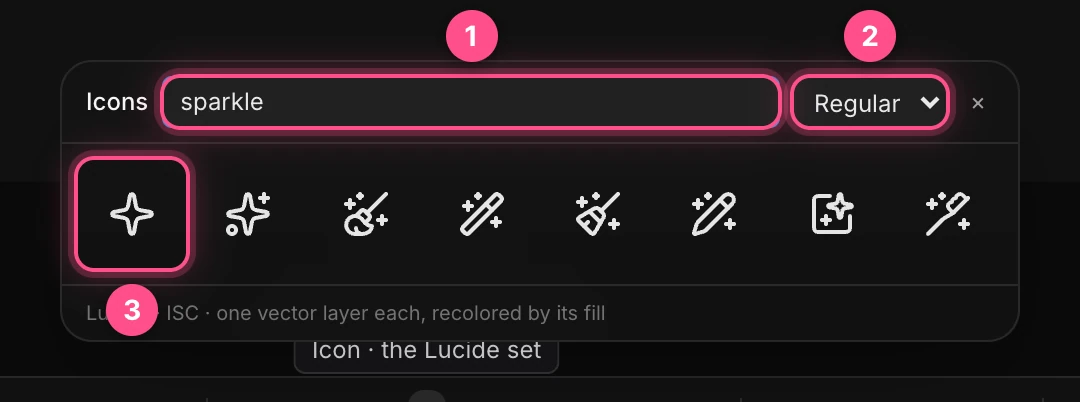
- Type what you're looking for: an arrow, a bell, a star.
- Choose a weight: Light, Regular or Bold.
- Click an icon to add it. It arrives as a vector layer; change its color in Panel Fill.
The panel stays open, so you can add several. Press Esc to close it.
Combine shapes
Two paths that overlap can become one shape.

- In the Layers panel, click the first path, then ⌘ Cmd-click the others.
Right-click one of them and choose Combine paths, then:
- Unite joins them into one outline.
- Subtract cuts the others out of the first one you selected.
- Intersect keeps only where they all overlap.
- Exclude keeps everything except where they overlap.
The result replaces them all, as one path in the first one's layer and color. Curves become many short straight sections.
To combine a rectangle, ellipse or triangle, turn it into a path first: right-click it and choose Convert to path. For text, choose Convert text to path; see Text, advanced.
Morph a path
To make a path change shape over time, key its outline:
- Select the path and press Enter to edit its anchors.
- With the playhead at the start, click Shape ◆ in the pen bar.
- Move the playhead, then drag the anchors into the new shape. The change records a keyframe.
Paths with the same number of anchors move point by point. With different numbers, the outline still reshapes smoothly between keys. See Motion paths and morphs.
Connect layers with lines
A connector is a line whose ends are pinned to other layers. Move a card, and the line follows it: right for diagrams and flowcharts.
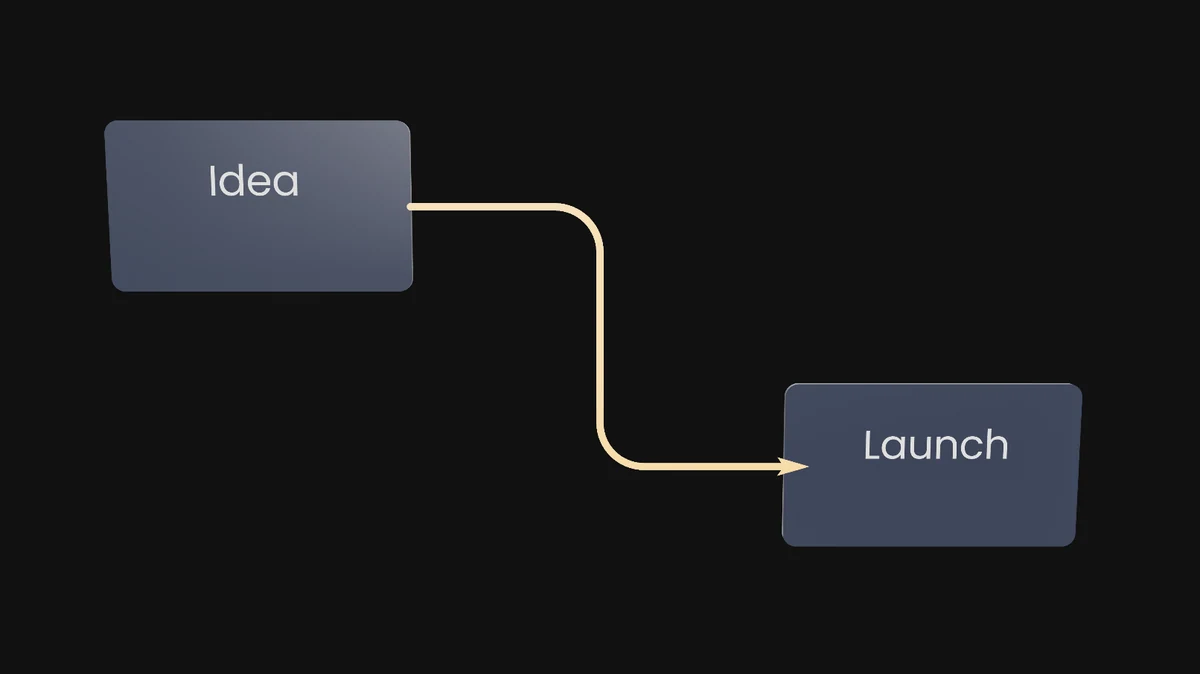
- Draw a line: with Line, the pen or a brush.
- Edit its anchors: double-click it, or select it and press Enter.
- Drag one end toward another layer. Dots appear on its anchor points: the center and the middle of each side, and a path's corners. Drop the end on a dot to pin it there, then do the same with the other end.
Drag an end away from its dot to free it.
You can also pin and route the line in its Connector section:
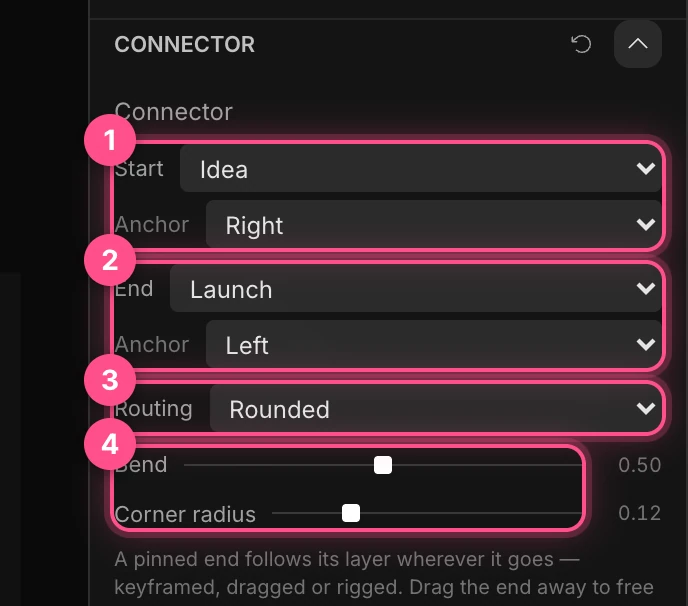
- Start and its Anchor: the layer the line starts from, and where on it.
- End and its Anchor: where it goes.
- Routing: Straight, Elbow (right-angled turns) or Rounded (turns with round corners).
- Bend moves the turn along the way. Corner radius sets how round a Rounded route's corners are.
For an arrowhead, set Stroke › End point to Arrow. See Strokes.