
Feedback and Point at it
"Make this smaller" only works if the assistant knows what "this" is. Point at it lets you click the layers you mean, right on the frame, and sends them with your message. Feedback keeps threads of notes on layers, a record of each round, that you can hand to the assistant whenever you're ready.
Point at layers
- In the assistant, click ⌖ (Point at it) beside the message box. The canvas shows Click a layer, or drag over several · Esc.
- Click a layer on the frame. Or drag a box over several, which also sends the assistant a picture of what's under the box.
- Type what you want, such as "make this word a pale warm amber", and send.
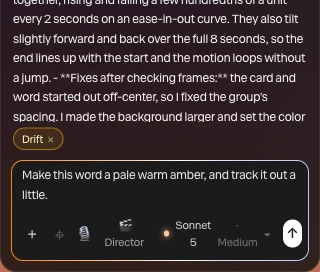
The picked layers show as amber chips over the message box. Click a chip's × to drop it, and press Esc to stop picking. Your message is tagged pointed at with the names, and the turn waits for Apply like any other.
Important
Nothing goes to the assistant until you send. The picture rides on that one message only.
A message with picked layers also starts a feedback thread on them, so the round is on record.
Leave feedback on a layer
Feedback threads live in the assistant's Feedback tab. The number on the tab counts the open threads.
- Right-click a layer in the Layers panel or on the canvas, and choose Comment…. For the whole scene, right-click the Scene row at the top of the Layers panel and choose Feedback for the assistant….
- Type your note.
- To have the assistant act on it now, check To the assistant. The button becomes Post & ask.
- Click Post, or press ⌘ Enter (Ctrl Enter).
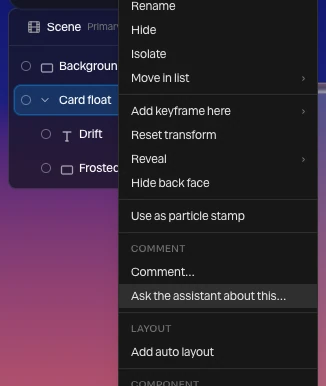
Ask the assistant about this… in the same menu skips the thread: it picks the layer and puts you in the message box.
A layer with open threads shows 💬 and their number in the Layers panel.
Work with a thread
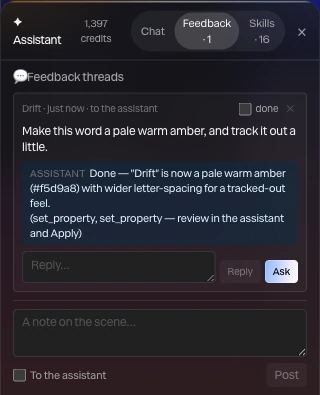
Each thread shows its layers, when it was written, and whether it went to the assistant. The assistant's answers are written into the thread, with a note to review its changes in the chat and apply them.
| To | Do this |
|---|---|
| Reply with a note | Type in Reply… and click Reply |
| Send the thread to the assistant | Click Ask, or press ⌘ Shift Enter in the reply box |
| Mark it done | Check done. Show … resolved brings done threads back. |
| Delete it | Click ✕ |
Opening Feedback from a layer shows only that layer's threads. Click All to see every thread in the scene.
Note
Feedback isn't the same as a note. Notes are for people, and the assistant never reads them. Threads on a deleted layer go with it.