
Brushes and drawing
The brush draws freehand strokes with the character of real tools: tapered paint, soft watercolor, grainy pencil, dry charcoal. Each stroke is a layer of its own, so you can recolor it, change its brush later, and animate it drawing itself on.
Draw
- Press B, or click Brush in the dock.
- Press and drag on the canvas. Let go to finish the stroke.
- Draw as many strokes as you like. Each one becomes its own layer: "Brush stroke 1", "Brush stroke 2" and so on.
- Press Esc or click Done to put the brush away.
A stroke is one step for undo, so ⌘ Cmd+Z takes back the last stroke whole.
Note
New strokes are a dark slate gray, which is easy to lose on a dark background. Change their color in the Stroke section. See Restyle a stroke.
Choose a brush
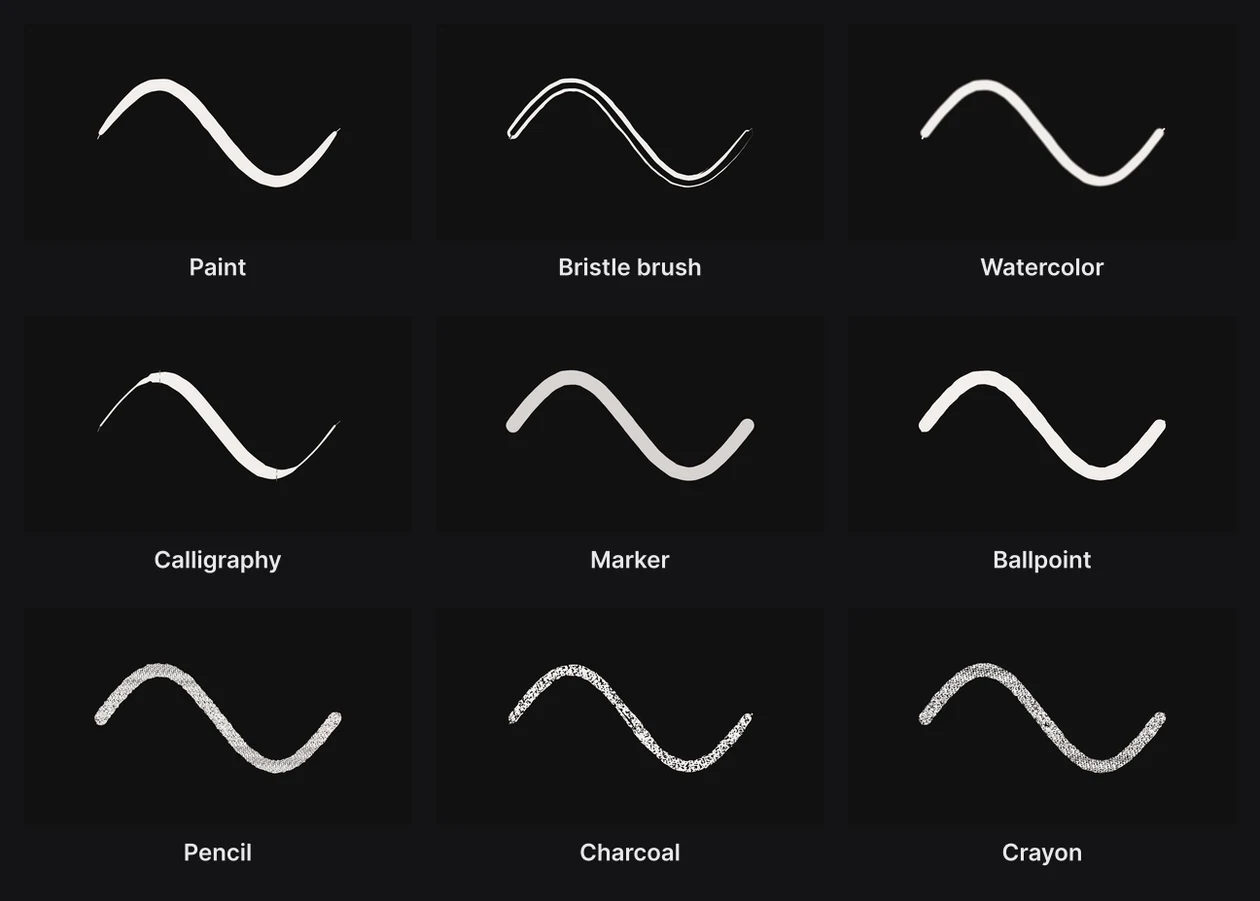
Press and hold Brush to open its family, and choose one:
| Brush | Feels like |
|---|---|
| Paint | Tapered and organic |
| Bristle brush | Streaky, drying out along the way |
| Watercolor | Soft, pooling at the edges |
| Calligraphy | A flat nib: thick and thin with the direction |
| Marker | Flat, darker where strokes overlap |
| Ballpoint | Even, with a little pressure |
| Pencil | A grainy edge |
| Charcoal | Wide, dry and skipping |
| Crayon | Waxy grain |
Clicking Brush brings back the last brush you used.
The brush bar
While the brush is out, a bar above the dock shows its settings.

- The brush list switches brushes without leaving the bar.
- Freehand draws as you drag. Anchors draws click by click instead, like the pen; Enter closes it into a shape.
- Smoothing irons out the wobble in your hand: 0 keeps every wiggle, 100 fits the fewest, smoothest curves. 50 is a good middle. The pen shares the setting.
- Done puts the brush away.
With a drawing tablet, the pen's pressure sets the stroke's width as you draw: a light touch draws thin, a firm one up to twice as wide. A mouse draws an even width.
Restyle a stroke
Select a stroke and open its Stroke section. Everything here can change after drawing.
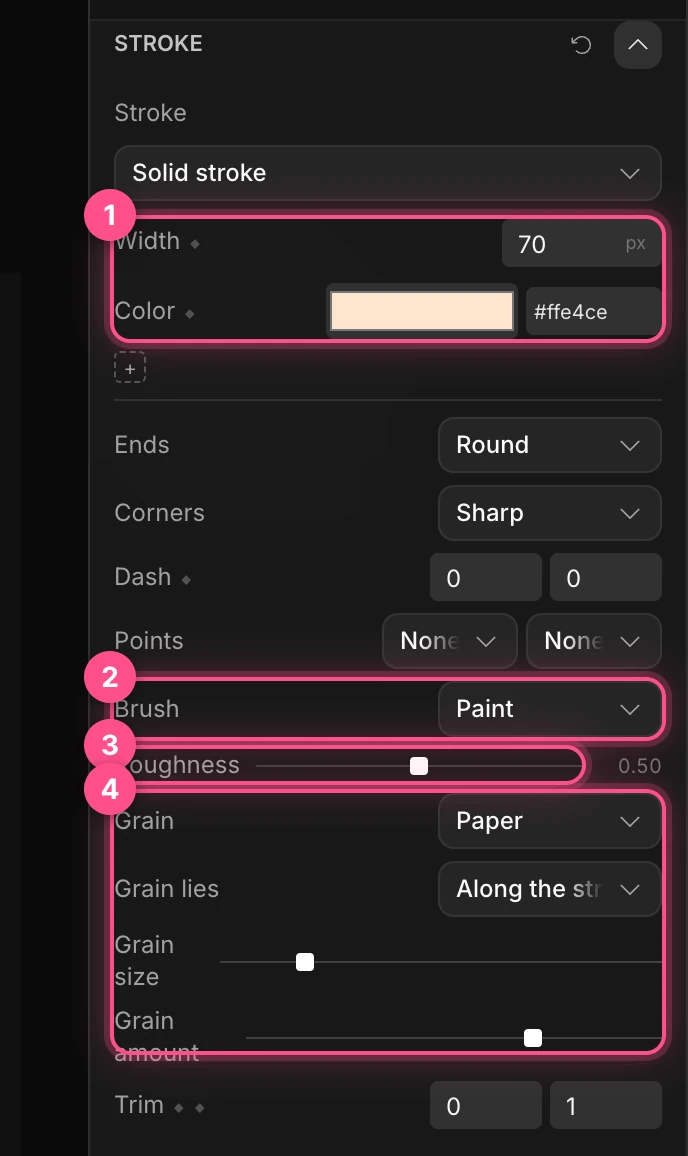
- Width and Color. Both have a diamond, so they can animate.
- Brush gives the stroke a different brush, or None for a plain line. Custom stamp uses a picture of your own as the brush tip: a PNG, SVG, WebP or JPEG under 400 KB.
- Roughness: how ragged the edges are. Calligraphy has Nib angle instead, the angle of its flat tip.
- Grain lays a texture over the stroke: Wood, Clay, Paper, Concrete, Plaster, Brushed metal, Leather, Grunge, Cardboard or Rubber. Grain lies runs it along the stroke or holds it still over the canvas; Grain size and Grain amount tune it.
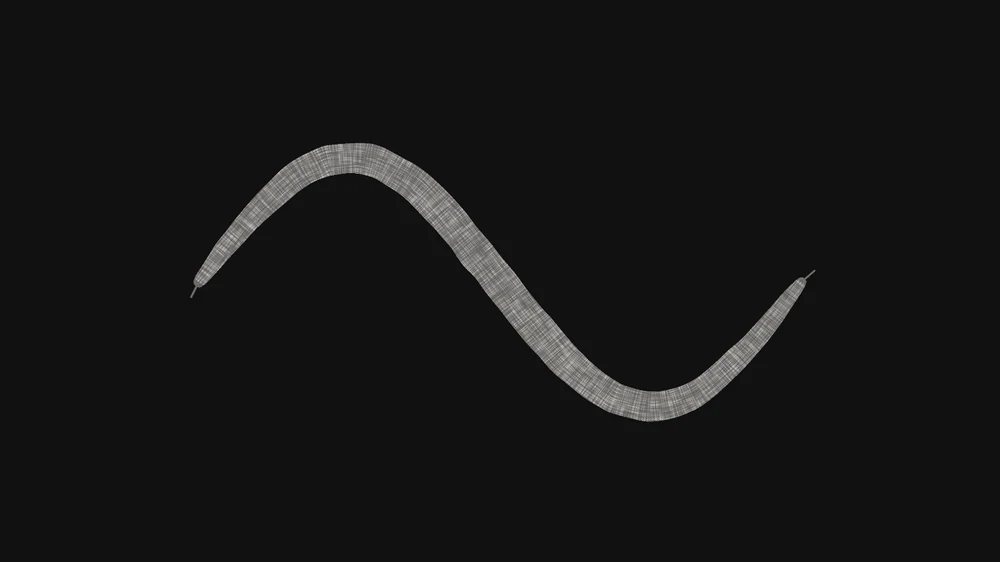
The rest of the section, Ends, Corners, Dash, Points and Trim, works the same for every line. See Strokes.
Draw a stroke on over time
To make a stroke appear as if someone is drawing it, animate its Trim:
- Select the stroke. Put the playhead where the drawing should start.
- In Stroke › Trim, set the second number (the end) to
0, and click its diamond. - Move the playhead later, and set the end to
1.
The stroke now draws itself from start to end.
See Animation basics for more on keyframes.