
Make an interactive hover card
You'll make a card for a web page that answers the pointer: it lifts toward the visitor when they hover over it, presses down when they click, and opens a link. Then you'll publish it and put it on your page. It's the scene itself on the page, not a video, so it stays sharp and live.

You'll learn how to
- give a layer a hover state and a click state
- make a click open a link
- try it as a visitor would, in Preview
- publish it and put it on your website
Before you start: a picture for the card, and a Paraplex account. Publishing needs one. See Plans and credits.
Part 1: Make the card
- On the home page, click New file.
- In the dock, click Rectangle, then click the middle of the frame.
- In the properties panel's Panel Fill section, click Add media… and choose your picture. The card takes the picture's shape.
- Make it a little rounder and bigger: set Corner radius to
0.1and Scale to2.5.
Part 2: Lift it on hover
- With the card selected, scroll down the properties panel to Behaviors.
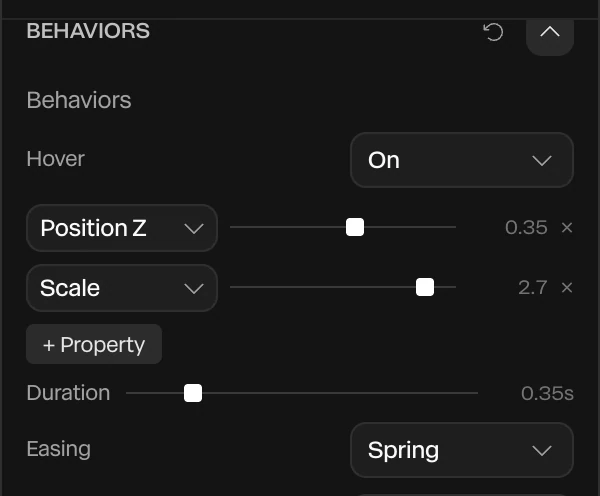
- Set Hover to On.
- Click + Property and choose Scale. Set it to
2.7: a little bigger than the card's own2.5. - Click + Property again and choose Position Z. Set it to
0.35, so the card comes toward the visitor too. - Set Duration to
0.35and Easing to Spring, for a lift with a little life in it.
Important
A state's values are the card's own, not changes to them. A hover Scale of 1.1 would shrink a card at 2.5.
Part 3: Press it, and open a link
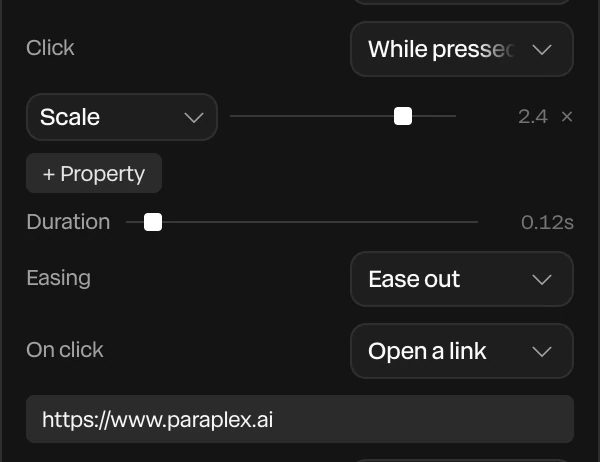
- Set Click to While pressed.
- Under it, click + Property, choose Scale and set it to
2.4: a little smaller than the card at rest, so it dips as it's pressed. - Set its Duration to
0.12, for a quick press. - Set On click to Open a link, and type the page it should open, such as
https://www.example.com.
Part 4: Try it
- Click Preview in the top bar.
- Move the pointer over the card, and away again. Click it.
- Press Esc to go back to editing.
Clicking in Preview opens the link in a new tab, as it will on your page. See Preview mode.
Part 5: Put it on your page
- Click Share in the top bar, then Publish embed….
- Name it, and set Scroll to Plays on its own: a hover card shouldn't move with the page's scroll.
- Click Publish, then Copy snippet.
- Paste the snippet into your page's HTML, or an Embed block in your website builder, where the card should go.
See Publish and embed for the dialog and what the snippet does.
Note
On the Free plan, one published embed can have hover or click states. Pro has no limit.
Try this next
- A row of cards: duplicate the card twice and put each one's picture in. Each keeps its own hover.
- More on hover: add Fill color or a glow's strength to the hover state. See Behaviors.
- Cards that fan out on a click: see State machines.
- A different layout on phones: see Responsive embeds.