
Make a looping website hero
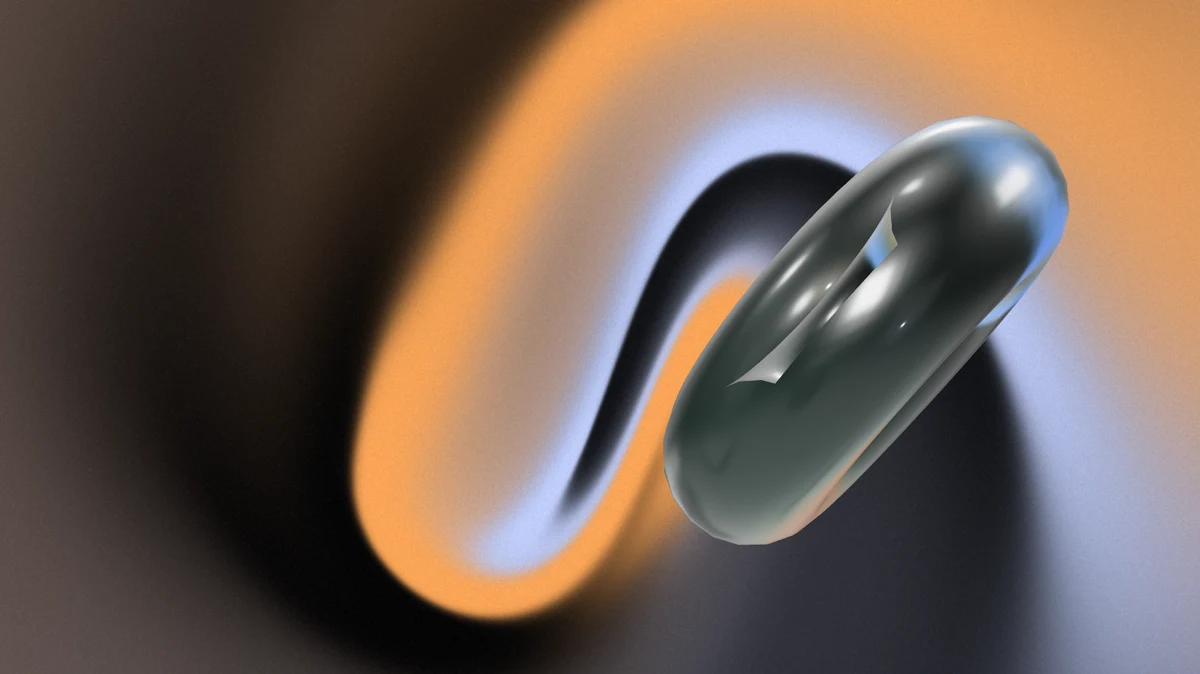
You'll make an eight-second background for the top of a website: a glass ring slowly tumbling over a dark gradient, lit warm on one side and cool on the other. It loops with no visible seam, so it can play forever behind your headline.

You'll learn how to
- give a scene a gradient background
- add a 3D shape and make it glass
- make a seamless loop: end where you began, at a steady speed
- export a video for a website, and put it there
Before you start: Nothing. Everything is in Paraplex.
Part 1: Set up the frame
- On the home page, click New file. It opens a blank Widescreen file.
- In the timeline's header, click the number after Duration, type
8and press Enter.
Part 2: Add the gradient
- Click Scene at the top of the Layers panel.
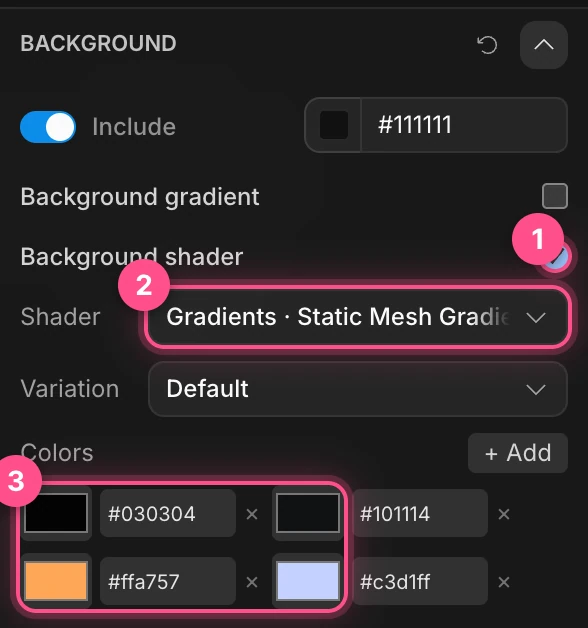
- In the Background section, tick Background shader (1), then set Shader to Gradients · Static Mesh Gradient (2).
- Under Colors (3), click each hex code and type a new one:
#030304,#101114,#FFA757and#C3D1FF. Two near-blacks, then a warm amber and a cool blue, like light at the two ends of the color-temperature scale. - Further down, set Mixing to
0.55and Grain overlay to0.12, for softer bands and a little film grain.
Important
Use a static gradient for a loop. The moving shaders keep changing, so the last frame wouldn't match the first, and the video would jump each time it starts again.
Part 3: Add a glass ring
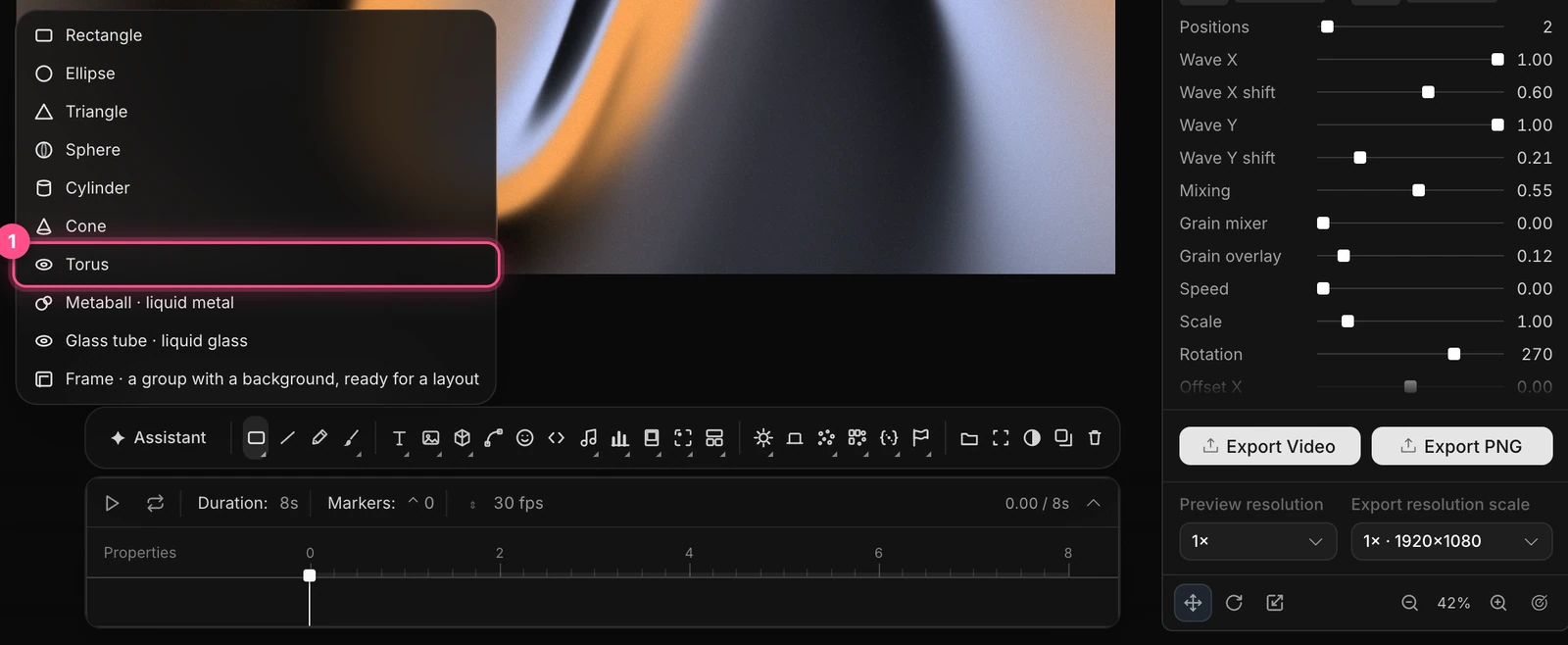
In the dock, press and hold the Rectangle button until its family opens, then click Torus (1). Click the middle of the frame to place it.
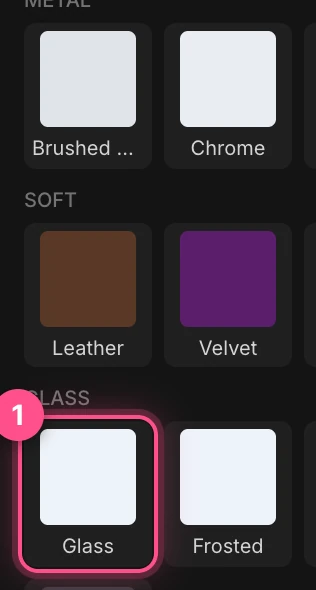
In the properties panel's Appearance section, under Glass, click Glass (1).
Make it a chunky ring, tilted, and off to the right:
- Thickness (in Panel Surface): click the number and type
0.25. - Scale:
2.4. - Rotation X:
60. - Position X:
420. That leaves the left side free for your page's headline.
- Thickness (in Panel Surface): click the number and type
Part 4: Make one full turn
A loop must end exactly where it began. One full turn does that, because the ring finishes facing the way it started.
- Put the playhead at the start, and click the diamond beside Rotation Y. Then click the Y number and type
-180. - Move the playhead to the end: click in the timeline's rows and press End. Type
180into Rotation Y. That's a second keyframe, at 8 seconds. - Now make the speed steady. Click the first keyframe on the Rotation Y lane, then the curve button beside the lane's name, and choose Linear (2).
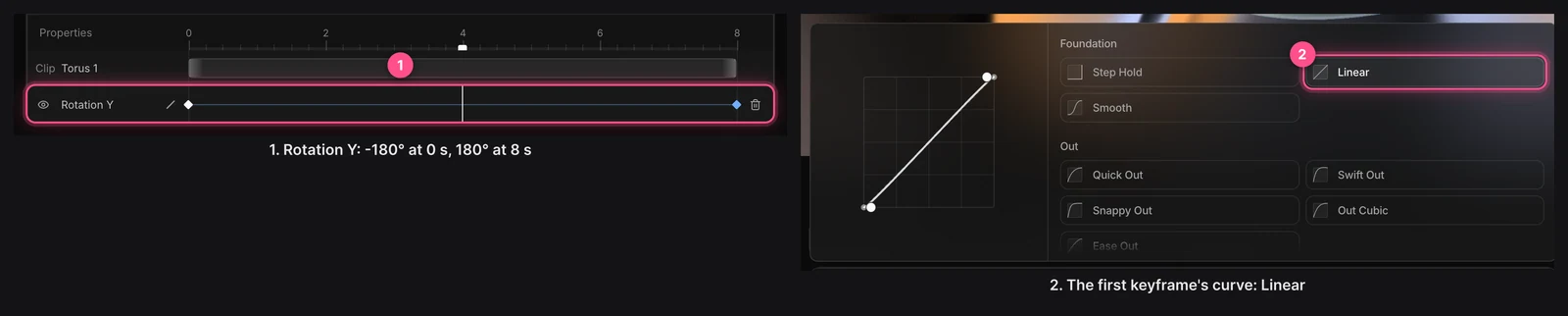
Rotation goes from −180° to 180°, which is one full turn: both ends face the same way. With the default Smooth curve, the ring would slow down at the end and speed up again at the start, and you'd see the seam. Linear keeps the speed the same through it. See Easing and springs.
Tip
Set the curve last. Changing a keyframe's value afterwards resets its curve to Smooth.
Press Space. Loop is on for new projects, so the piece plays round and round: watch for the moment it starts again. You shouldn't be able to see it.
Export it
- Press Esc so nothing is selected.
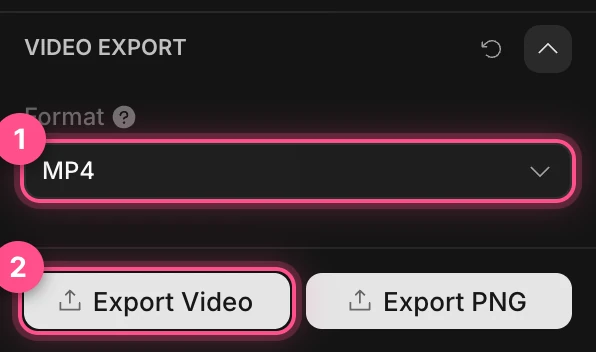
- Check that Video Export › Format is MP4 (1). MP4 plays in every browser.
- Click Export Video (2).
Put it on your website
The video goes behind your headline. The words stay real text on your page, so they're sharp, searchable and easy to change.
- Webflow: add a Background Video element and upload the MP4. It plays muted and loops on its own. Put your headline inside it.
- Framer: add a Video, upload the MP4, and turn on its autoplay, loop and mute settings.
Your own HTML: use a video tag that autoplays, loops and stays muted:
<video src="hero.mp4" autoplay muted loop playsinline></video>
Note
Browsers only autoplay video that's muted, which is why every option above mutes it.
Try this next
- Make it react to the pointer: publish the piece from Paraplex and embed it, instead of a video. See Publish and embed.
- Try another shape: a Glass tube or a Metaball from the same family. See Shapes and frames.
- Try another glass: Frosted or Dark glass, in Appearance. See Materials and appearances.
- Back to the start: Make an animated title card.